So, you have your assignment title – and the deadline that goes with it, what next?
You need to find information that will help you write that assignment. Start doing this without some kind of plan and you risk hours of looking without much success. So you need to make a plan.
1. Begin with your title
Look at your title and pick out the key words that you need to search for in order to answer the question. Here’s an example:
How effective is cognitive behaviour therapy in reducing chronic pain in adults
Words to include: Cognitive behaviour therapy, Chronic pain, adults
Words to ignore: effective, reducing
2. Find the alternatives
Once you have identified words in the title, consider alternatives or related terms. For example acronyms or abbreviations for a term; American / English spelling variations; alternative ways of describing a term (synonyms); related topics. The more variations you have to include in your search the greater chance you have of finding the material you need.
3. Get organised
There are various ways you can organise your thoughts and make sure you have considered all the options. You may like to draw a spider diagram with your question / title in the middle and all the terms / topics / sub-questions you can think of around the outside.
A technique many people use is PICO. This helps you break your topic down under 4 key headings, which can help you understand what you are searching for, and help you define your keywords. The PICO headings are: population / patient / problem; Intervention; Control / comparison / Outcome. For example:
P = adults / adult / specific age groups e.g older adults
I = cognitive behaviour therapy / cbt / psychotherapy / cognitive therapy / cognitive treatment / behavioural therapy
C = drugs / drug therapy / pain killers / specific drugs
O = pain reduction / pain control / pain management / pain assessment / pain level / chronic pain / suffering / specify type of pain e.g. low back pain
4. Link it all together
Once you feel you have identified all the relevant terms you are nearly ready to start searching, however once you begin to enter terms into a database you will need to connect them together. Boolean Operators are used to connect terms in a search.
“OR” is used to connect related terms (e.g. cognitive behaviour therapy OR cbt). This allows you to include your related terms in a search and broadens out the search.
“AND” is used to connect different terms (e.g. cognitive behaviour therapy AND chronic pain). This allows you to make your search specific and cuts out any results which only covers one of your terms.
“NOT” is used to exclude a particular aspect of a topic (e.g pain reduction NOT drugs).
So your final search might look something like:
adults OR adult OR older adults
AND
cognitive behaviour therapy OR cbt OR psychotherapy OR cognitive therapy OR cognitive treatment OR behavioural therapy
AND
pain reduction OR pain control OR pain management OR pain assessment OR pain level OR chronic pain OR suffering
5. Still not sure?
If you want some further advice on planning a search or how to search specific databases then contact your Academic Support Librarian – you can find our contact details on the About Us page of this blog.

Showing posts with label getting started. Show all posts
Showing posts with label getting started. Show all posts
Monday, 29 November 2010


Tuesday, 23 November 2010
Finding the evidence: choosing where to look
There are many places you can search for information to support your arguments. One of the most confusing elements of searching is knowing where to go to find the evidence you need.
Choosing the right location is really important to finding information as easily as you can. However there is no single place that will always answer your questions, different assignments will lead to different searches.
Here is an example:
Has the Department of Health’s 2003 Tacking Health Inequalities report changed the impact of poverty on mortality rates?
Use the internet to find:
The report mentioned – either by searching Google or going straight to the Department of Health website if you know it.
Links to UK government statistics on poverty and mortality rates from before and after the report
Use textbooks to find:
Broader information and commentaries on health inequalities as a topic
Use databases to find:
Latest information, primary evidence and specific research into topics around this written in journal articles for example clinical trials that evidence how mortality rates within an impoverished inner city area are higher for a condition that in an affluent suburb.
You can find more detailed information on finding and using different databases and the library catalogue elsewhere in our blog. If you want to keep up to date with new articles and posts, why not follow us on twitter.
Choosing the right location is really important to finding information as easily as you can. However there is no single place that will always answer your questions, different assignments will lead to different searches.
Here is an example:
Has the Department of Health’s 2003 Tacking Health Inequalities report changed the impact of poverty on mortality rates?
Use the internet to find:
The report mentioned – either by searching Google or going straight to the Department of Health website if you know it.
Links to UK government statistics on poverty and mortality rates from before and after the report
Use textbooks to find:
Broader information and commentaries on health inequalities as a topic
Use databases to find:
Latest information, primary evidence and specific research into topics around this written in journal articles for example clinical trials that evidence how mortality rates within an impoverished inner city area are higher for a condition that in an affluent suburb.
You can find more detailed information on finding and using different databases and the library catalogue elsewhere in our blog. If you want to keep up to date with new articles and posts, why not follow us on twitter.
Thursday, 18 November 2010
Finding the evidence: So what's wrong with google...
Google and other search engines are quick and easy ways to find answers to your questions, but you cannot rely on them entirely when searching for the evidence for your assignments.
Personal / social web surfing is different to academic searching so you may need to look in different places. Just because you use google / wikipedia to find out answers to questions you are interested in does not mean these should necessarily be your first port of call when producing an academic assignment.
You need to find trustworthy evidence for your assignments, and the major difficulty in searching the web is that you don’t necessarily have the background knowledge to do this. If you are researching a condition or a treatment that you have never heard of then it becomes very difficult to decide whether websites you come across are accurate and truthful and therefore suitable for your work. You really need to find sources of evidence that add to the quality and credibility of your work; using google might feel easier than learning how to use academic databases, but bear in mind the effort you then need to put in to evaluate what you find.
Google is not ‘bad’ – neither is wikipedia for that matter, but web based resources have their limits.
What does Google do well?
- Huge coverage and up to date information
- Easy and familiar search interface
- Options for advanced features
- Google Scholar allows you to search academic content & focuses on journal articles, if searching from on campus this will tie in to our Find It links to help you get the full text.
- “Define:” feature allows you to locate definitions of a term where they appear on the web.
- Domain searching (within the advanced options) allows you to search within an area of the internet, for example “.nhs.uk”.
What’s missing from a google search?
- Opportunity to build a systematic search structure or combine searches easily
- Facility to truly narrow down results using limits as you can in a database
- Features such as saving your search or specific results to return to at a later date
- A lot of academic material, such as journal articles, may not appear in a google search - Google Scholar is better for this as it focuses more on ‘scholarly literature’.
So what should i use google for?
- To find websites where they are needed, for example locating what patient information is available on a condition, or finding product information for a device or aid.
- To navigate to websites for professional / government / charitable organisations such as Department of Health.
Where else should i go for my research?
- Start with textbooks, encyclopedias and dictionaries to understand your key terms – if you don’t understand your topic you can’t research it properly.
- Find the latest research articles in academic databases; you may use something like google scholar as part of this (this works better on campus as it then links automatically to our full text resources).
- Search in subject gateways on the web - try Intute or NHS Evidence - these allow you to search as if you were somewhere like google, but the resources have been evaluated or checked to some degree to ensure you are not finding inaccurate or unsafe information.
- Consider web content that might be useful for example professional or government information.
How do I learn how to use these tools?
You can get help from your Academic Support Librarian on how to locate books / dictionaries etc and how to use the databases we have access to. You can find our contact information on the About Us page of our blog.
Personal / social web surfing is different to academic searching so you may need to look in different places. Just because you use google / wikipedia to find out answers to questions you are interested in does not mean these should necessarily be your first port of call when producing an academic assignment.
You need to find trustworthy evidence for your assignments, and the major difficulty in searching the web is that you don’t necessarily have the background knowledge to do this. If you are researching a condition or a treatment that you have never heard of then it becomes very difficult to decide whether websites you come across are accurate and truthful and therefore suitable for your work. You really need to find sources of evidence that add to the quality and credibility of your work; using google might feel easier than learning how to use academic databases, but bear in mind the effort you then need to put in to evaluate what you find.
Google is not ‘bad’ – neither is wikipedia for that matter, but web based resources have their limits.
What does Google do well?
- Huge coverage and up to date information
- Easy and familiar search interface
- Options for advanced features
- Google Scholar allows you to search academic content & focuses on journal articles, if searching from on campus this will tie in to our Find It links to help you get the full text.
- “Define:” feature allows you to locate definitions of a term where they appear on the web.
- Domain searching (within the advanced options) allows you to search within an area of the internet, for example “.nhs.uk”.
What’s missing from a google search?
- Opportunity to build a systematic search structure or combine searches easily
- Facility to truly narrow down results using limits as you can in a database
- Features such as saving your search or specific results to return to at a later date
- A lot of academic material, such as journal articles, may not appear in a google search - Google Scholar is better for this as it focuses more on ‘scholarly literature’.
So what should i use google for?
- To find websites where they are needed, for example locating what patient information is available on a condition, or finding product information for a device or aid.
- To navigate to websites for professional / government / charitable organisations such as Department of Health.
Where else should i go for my research?
- Start with textbooks, encyclopedias and dictionaries to understand your key terms – if you don’t understand your topic you can’t research it properly.
- Find the latest research articles in academic databases; you may use something like google scholar as part of this (this works better on campus as it then links automatically to our full text resources).
- Search in subject gateways on the web - try Intute or NHS Evidence - these allow you to search as if you were somewhere like google, but the resources have been evaluated or checked to some degree to ensure you are not finding inaccurate or unsafe information.
- Consider web content that might be useful for example professional or government information.
How do I learn how to use these tools?
You can get help from your Academic Support Librarian on how to locate books / dictionaries etc and how to use the databases we have access to. You can find our contact information on the About Us page of our blog.
Friday, 19 March 2010
eJournal passwords
Athens
The majority of eJournals subscribed to by the University of Salford can be accessed off campus using your Athens username and password. Athens is a system that identifies you as a member of a particular organisation, as part of your university computing account you are automatically given an Athens username and password. You can find out more about Athens by clicking here.
If you are a member of another organisation, for example another university, or the NHS you may also be given an Athens username and password to access their resources.
Your Athens details are case sensitive so make sure you enter your username in lower case and your password in upper case.
Proxy Authentication
Some eJournals require you to set up a proxy authentication. You can read more about this in another post.
Individual Passwords
A few eJournals have their own individual logins in order to access the full text of articles from off campus. ILS has produced a web page that allows you to check for the appropriate password for a journal. You can access this page at http://www.ils.salford.ac.uk/library/resources/epasswords/ however you must be on campus to view this information. If you need help accessing details of passwords from off campus contact your Information Specialist (you can find our contact details in the "About Us" page - there is a link at the top of the screen.)
Some Health & Social Care journals that require their own password are:
Infant
Journal of Occupational Science
Journal of Orthopaedic and Sports Physical Therapy
Mental Health Today
Mental Health Nursing
Neonatal Network
Sport and the Law Journal
You can also find information on passwords for eJournals on the Salford e-Library News blog at http://salfordelibnews.blogspot.com/search/label/passwords
The majority of eJournals subscribed to by the University of Salford can be accessed off campus using your Athens username and password. Athens is a system that identifies you as a member of a particular organisation, as part of your university computing account you are automatically given an Athens username and password. You can find out more about Athens by clicking here.
If you are a member of another organisation, for example another university, or the NHS you may also be given an Athens username and password to access their resources.
Your Athens details are case sensitive so make sure you enter your username in lower case and your password in upper case.
Proxy Authentication
Some eJournals require you to set up a proxy authentication. You can read more about this in another post.
Individual Passwords
A few eJournals have their own individual logins in order to access the full text of articles from off campus. ILS has produced a web page that allows you to check for the appropriate password for a journal. You can access this page at http://www.ils.salford.ac.uk/library/resources/epasswords/ however you must be on campus to view this information. If you need help accessing details of passwords from off campus contact your Information Specialist (you can find our contact details in the "About Us" page - there is a link at the top of the screen.)
Some Health & Social Care journals that require their own password are:
Infant
Journal of Occupational Science
Journal of Orthopaedic and Sports Physical Therapy
Mental Health Today
Mental Health Nursing
Neonatal Network
Sport and the Law Journal
You can also find information on passwords for eJournals on the Salford e-Library News blog at http://salfordelibnews.blogspot.com/search/label/passwords
Setting up Proxy Authentication on your PC
The majoirty of electronic journals available through Salford University can be accessed off campus using your Athens username and password. However, a few of the eJournals we subscribe to require you to set up 'proxy authentication' in order to view the full text from off campus.
If you access the journal through the eLibrary's 'Find eJournal' section you will see information on how to access the journal from off campus. If proxy setup is required this will be clearly stated.

The Proxy Service is required for a few journals where access is restricted to University members in such a way that it is not available from an off campus location. By setting up proxy access you are logging in to the network via your own PC.
ILS has produced a user guide that will take you through the steps needed to set up proxy access. This guide is avaiable at http://www.ils.salford.ac.uk/help/userguides/computing/webauth.pdf.
In order to set up proxy access you will need to know which internet browser you use (for example Internet Explorer or Firefox) - if you are not sure, look at the icon you click on to get to the internet. You will also need to know whether you have a dial-up or a broadband connection to the internet. Towards the end of the guide you will find a list of frequently asked questions, however if you have any problem setting up the proxy service you can contact the ILS Service Desk on ils-servicedesk@salford.ac.uk or 0161 2952444.
For more information on eJournal password see the blog http://healthinfoskills.blogspot.com/2010/03/ejournal-passwords.html
If you access the journal through the eLibrary's 'Find eJournal' section you will see information on how to access the journal from off campus. If proxy setup is required this will be clearly stated.

The Proxy Service is required for a few journals where access is restricted to University members in such a way that it is not available from an off campus location. By setting up proxy access you are logging in to the network via your own PC.
ILS has produced a user guide that will take you through the steps needed to set up proxy access. This guide is avaiable at http://www.ils.salford.ac.uk/help/userguides/computing/webauth.pdf.
In order to set up proxy access you will need to know which internet browser you use (for example Internet Explorer or Firefox) - if you are not sure, look at the icon you click on to get to the internet. You will also need to know whether you have a dial-up or a broadband connection to the internet. Towards the end of the guide you will find a list of frequently asked questions, however if you have any problem setting up the proxy service you can contact the ILS Service Desk on ils-servicedesk@salford.ac.uk or 0161 2952444.
For more information on eJournal password see the blog http://healthinfoskills.blogspot.com/2010/03/ejournal-passwords.html
Thursday, 11 March 2010
Finding the full text of journal articles
Salford University has two library systems which you can use to find the full text of journal articles we subscribe to.
e-Journals...
The first place to visit is the e-Library, as most of our journals are now available electronically. Go to the student channel (http://students.salford.ac.uk/) and click the e-Library link. Log in with your university username and password.
From the e-Library homepage select the "Find e-Journal" option. The e-Journal search page appears. Type in the title of the journal you want to access (make sure it is the title of the journal, not the specific article...) You will see the system try to second guess which title you are looking for - either keep typing, or select from the options it provides. Click Go.
A list of journals that match your search appears. Click the title of the journal you want to open; a new window will open up. From here you can access the journal webpage by using the "View the Full Text..." link. Always check that we cover the years you need, and that you have the right password to access articles if you are working from off campus - both these pieces of information appear on this page.
Journal websites will allow you to navigate through to a particular article if you already have a reference (you may need to look for an option like "previous issues" or "archive"). You can also often carry out keyword searches within the journal to find articles published in that journal on a specific topic.
Print journals...
While most journals are now available electronically, some titles are still only held in print. If the e-Library does not locate the journal you want, then it is always important to check the Library Catalogue to make sure we dont have print access to that journal.
Access the library catalogue from the student channel page (http://students.salford.ac.uk/). From the catalogue search page, enter the title of the journal in the Title box; from the options on the right, select 'Journals Catalogue' from the collections drop-down list. Click search.
If the journal is available in the library you will see it appear in the results - all the journals for FHSC subjects should be held in the Allerton library and are shelved alphabetically by title on level 3. To find information on what years we subscribe to, click the show library holdings link at the bottom of the journal record.
If Salford dont have the journal...
If your journal, or the section of the journal you need, does not appear through e-Library or the Library Catalogue then we do not subscribe to it. Click the links below to visit the library website and learn more about other options available to you.
Document Delivery Service
Visiting Other Libraries
If you can't find the article you may need to search in one of the databases using your keywords to find other journal articles on that topic that we do subscribe to.
e-Journals...
The first place to visit is the e-Library, as most of our journals are now available electronically. Go to the student channel (http://students.salford.ac.uk/) and click the e-Library link. Log in with your university username and password.
From the e-Library homepage select the "Find e-Journal" option. The e-Journal search page appears. Type in the title of the journal you want to access (make sure it is the title of the journal, not the specific article...) You will see the system try to second guess which title you are looking for - either keep typing, or select from the options it provides. Click Go.
A list of journals that match your search appears. Click the title of the journal you want to open; a new window will open up. From here you can access the journal webpage by using the "View the Full Text..." link. Always check that we cover the years you need, and that you have the right password to access articles if you are working from off campus - both these pieces of information appear on this page.
Journal websites will allow you to navigate through to a particular article if you already have a reference (you may need to look for an option like "previous issues" or "archive"). You can also often carry out keyword searches within the journal to find articles published in that journal on a specific topic.
Print journals...
While most journals are now available electronically, some titles are still only held in print. If the e-Library does not locate the journal you want, then it is always important to check the Library Catalogue to make sure we dont have print access to that journal.
Access the library catalogue from the student channel page (http://students.salford.ac.uk/). From the catalogue search page, enter the title of the journal in the Title box; from the options on the right, select 'Journals Catalogue' from the collections drop-down list. Click search.
If the journal is available in the library you will see it appear in the results - all the journals for FHSC subjects should be held in the Allerton library and are shelved alphabetically by title on level 3. To find information on what years we subscribe to, click the show library holdings link at the bottom of the journal record.
If Salford dont have the journal...
If your journal, or the section of the journal you need, does not appear through e-Library or the Library Catalogue then we do not subscribe to it. Click the links below to visit the library website and learn more about other options available to you.
Document Delivery Service
Visiting Other Libraries
If you can't find the article you may need to search in one of the databases using your keywords to find other journal articles on that topic that we do subscribe to.
Thursday, 11 February 2010
Creating a search strategy
Before you begin searching electronic databases you need to define the topic you are researching. By establishing a clear search strategy you can reduce the amount of time you spend searching and find the most relevant materials.
Identify your keywords...
Start by looking at your topic / assignment title / research question. What are the key words & phrases? Identify all the terms you need to answer the question. From there, consider any alternative spellings (pediatric / paediatric), and any synonyms (related terms). You may want to simply write a list of possible terms.
Connect your terms...
When you come to search within a database you will need to connect your key terms together. You do this using 'Boolean Operators' - the words AND, OR, NOT.
AND: connecting two terms together with AND means that both must be included in the result. This will make your search more specific and reduce the number of results returned. e.g. "heart attack AND obesity"
OR: connecting terms with OR will retrieve results that mention either so you will get a large number of results. OR searches are useful where you have synonyms or related terms and want to search for results mentioning any. e.g. "child OR children OR pediatric OR paediatric".
NOT: using a NOT search will exclude a specific topic from your results. Be careful not to exclude a topic that may actually be useful. e.g. "cancer NOT lung".
Too many results?
You may need to narrow down your search by linking keywords together using the AND boolean operator. Some databases also allow you to apply 'limits' such as excluding papers that are too old or not written in English.
Too few results?
You may need to widen your search terms. Consider alternative ways of saying the same thing and use the OR boolean operator to extend your search. If you have applied limits you may wish to revist these.
Identify your keywords...
Start by looking at your topic / assignment title / research question. What are the key words & phrases? Identify all the terms you need to answer the question. From there, consider any alternative spellings (pediatric / paediatric), and any synonyms (related terms). You may want to simply write a list of possible terms.
Connect your terms...
When you come to search within a database you will need to connect your key terms together. You do this using 'Boolean Operators' - the words AND, OR, NOT.
AND: connecting two terms together with AND means that both must be included in the result. This will make your search more specific and reduce the number of results returned. e.g. "heart attack AND obesity"
OR: connecting terms with OR will retrieve results that mention either so you will get a large number of results. OR searches are useful where you have synonyms or related terms and want to search for results mentioning any. e.g. "child OR children OR pediatric OR paediatric".
NOT: using a NOT search will exclude a specific topic from your results. Be careful not to exclude a topic that may actually be useful. e.g. "cancer NOT lung".
Too many results?
You may need to narrow down your search by linking keywords together using the AND boolean operator. Some databases also allow you to apply 'limits' such as excluding papers that are too old or not written in English.
Too few results?
You may need to widen your search terms. Consider alternative ways of saying the same thing and use the OR boolean operator to extend your search. If you have applied limits you may wish to revist these.
Introducing Athens
Athens is a system for controlling access to web-based subscriptions, including many of those provided by ILS. As a member of Salford University, you will be given your own Athens username and password, to allow you access to our electronic resources. You may also receive Athens login details from other organisations connected to your programme, such as the NHS to access their subscriptions.
Your Athens username and password is strictly confidential and should not be shared with anyone else.
You can find your Athens login details saved in a file called "Password" on your F Drive. Log in to a computer on campus and double click the F Drive icon on the desktop. Open the password file - your Athens details are shown.
Remember your Athens username and password are case sensitive. Enter your username in lower case and your password in upper case.
Your Athens username and password is strictly confidential and should not be shared with anyone else.
You can find your Athens login details saved in a file called "Password" on your F Drive. Log in to a computer on campus and double click the F Drive icon on the desktop. Open the password file - your Athens details are shown.
Remember your Athens username and password are case sensitive. Enter your username in lower case and your password in upper case.
e-Library basics
E-Library is the access point to electronic (non-print) resources at Salford University. E-Library provides access to databases for searching, and electronic books, journals and dictionaries. You can access e-Library from the Student Channel. You will need your university username and password to log in.
Use e-Library QuickSearch to carry out basic, introductory searches. Log in to e-Library and select QuickSearch. You will see the following screen:
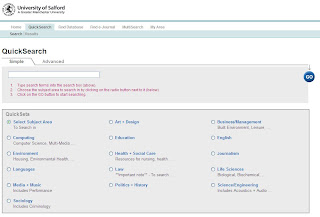
Enter your keyword(s) into the search box
Tick the Health and Social Care option, then click Go.
Your search will be carried out in health and social care related databases – once the search has finished you will be automatically taken to the results screen.
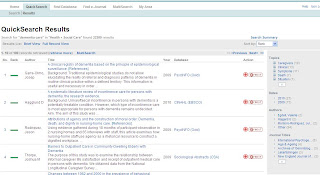
To view the record for a result click on the title.
To narrow your search down, use the options in the grey box on the right of the screen – you can select by keyword, date, author or journal.
To see if Salford University has access to the full text click the Find It button.
Use e-Library QuickSearch to carry out basic, introductory searches. Log in to e-Library and select QuickSearch. You will see the following screen:

Enter your keyword(s) into the search box
Tick the Health and Social Care option, then click Go.
Your search will be carried out in health and social care related databases – once the search has finished you will be automatically taken to the results screen.

To view the record for a result click on the title.
To narrow your search down, use the options in the grey box on the right of the screen – you can select by keyword, date, author or journal.
To see if Salford University has access to the full text click the Find It button.
Subscribe to:
Posts (Atom)